
LastPass Password Manager
LastPass US LPProductivity
3.841.53K Reviews
- Version
- 6.56.0.26547
- Installs
- 10.00M
- Age Rating
- Everyone
Screenshots
Our Review of LastPass Password Manager
 Analysis by Appyee
I judge a password manager less by how many options it lists than by whether it gets out of the way when I need to sign in. A vault can be secure in theory and still frustrate me if it takes too long to find an entry or repeatedly asks me to fix a login. LastPass Password Manager is designed to put passwords and other sensitive details in one place, so the everyday test is whether that convenience fits the way you actually use your phone and computer.
What the speed feels like in everyday use
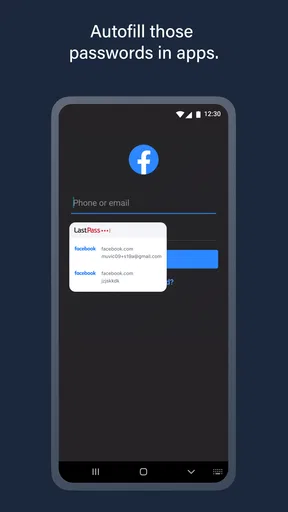
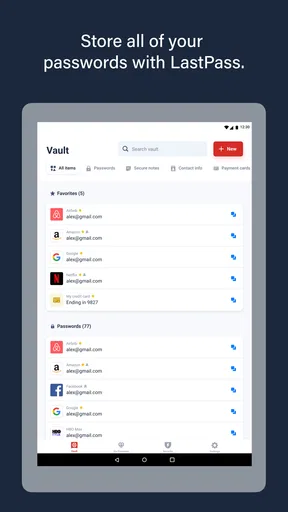
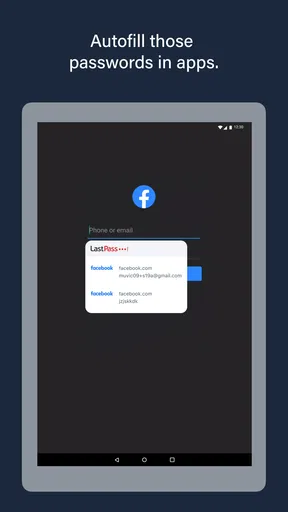
For a password manager, “fast” mostly means fewer interruptions: I can locate a saved account, fill its details, and get back to what I was doing without switching between notes or trying several old passwords. Auto-fill is the part that can make the biggest practical difference. When it recognizes a sign-in screen, it cuts out repetitive typing; when it doesn’t, I still need to open the vault and select the right entry, so I wouldn’t treat automatic sign-in as guaranteed on every page.
That distinction matters on a small screen. If I’m checking a delivery update while standing outside or signing in to a service during a quick break, choosing the correct saved login is more useful than a long menu of security settings. I’d organize entries with clear names as I add them rather than waiting until the vault is crowded. A little care up front makes searching and choosing the right account less of a chore later.
When the vault gets heavy use
The app is most valuable when several parts of life demand separate logins: household bills, shopping, work tools, and personal accounts. A realistic example is replacing a forgotten password while away from home. Instead of resetting it immediately or relying on a reused password, I can check the saved entry first. If it is out of date, I can then use the service’s reset process and update the vault, keeping the new credential in the same place I’ll look next time.
For shared accounts, the sharing center can be more orderly than sending a password in a message. I’d still think carefully about what I share and with whom; convenience doesn’t remove the need to review access when a family arrangement or work relationship changes. Emergency access also calls for preparation rather than assumption: designate a trusted contact only after considering what they could reach and whether that level of access is appropriate.
A useful habit is to treat the vault as a working record, not a one-time import. After changing a password, check that the saved entry reflects the new one. For especially important accounts, keep the recovery route in mind as well: the password manager can organize credentials, but it doesn’t replace the account provider’s own recovery process or your responsibility to protect the master password.
Reliability means more than syncing
Having the same vault available on multiple devices is helpful only when I know which copy to trust. LastPass is built to sync, but I would still make a quick check after adding or changing an important login, particularly if I switch between phone and computer. That simple confirmation can prevent the annoying moment when an old credential appears on another device and I’m unsure whether I saved the update.
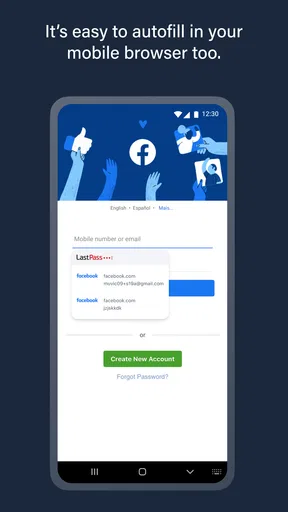
Auto-fill can also depend on the sign-in page and the device settings around it. If a particular app or website doesn’t offer the expected prompt, that doesn’t automatically mean the password is missing; opening the vault and searching manually is a sensible fallback. I like a manager best when I’m willing to use both routes instead of assuming every login screen will behave identically.
Device fit and the practical limits
LastPass is a productivity app from LastPass US LP, and its appeal is strongest if you move between a mobile device and a computer and want a central place for credentials. Its store rating averages 3.6 from around 235,000 ratings, with roughly 41,000 written reviews and over 10 million installs. That scale makes it a familiar choice, but the rating also suggests it may not be an effortless fit for everyone; I’d weigh your own device habits and tolerance for managing a vault rather than treating popularity as a guarantee.
The current version is 6.46.0.21457, and the listed minimum operating-system requirement is version 12. It is free to install, with in-app purchases ranging from $0.99 to $35.99 per item, so I’d check which plan and features suit my needs before relying on a particular paid option. The app is rated for Everyone. Its free offering has a device-type restriction: the original setup description says it covers one type of device, either computers or mobile devices, rather than both. That can be a meaningful limit if you expect to move freely between phone and computer.
Compared with saving passwords in a browser, a dedicated vault can be more useful if you want a separate place for personal information and payment details as well as logins. A browser’s built-in manager may be simpler if nearly all your sign-ins happen in one browser and you want fewer apps to maintain. Compared with keeping passwords in notes, a password manager is a much better fit for organized credentials and auto-fill, but it also creates a master password you must remember and protect. There isn’t one right answer: the best option is the one you’ll use consistently and can recover access to responsibly.
Getting Started
So, setting up LastPass Password Manager is a breeze. I downloaded the app, created an account, and voilà—I was ready to go. The app guides you through importing your existing passwords from browsers or other password managers, which is a huge time-saver. Plus, it offers a security challenge to help you identify weak or duplicate passwords. Trust me, it’s an eye-opener!
Features That Stand Out
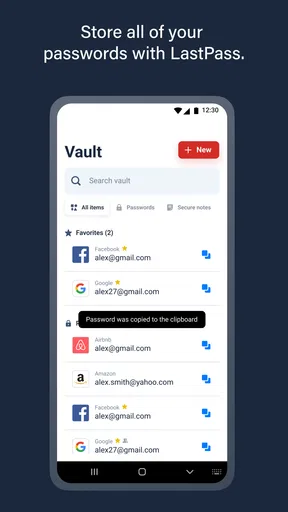
Let’s talk about the features because, honestly, this app is packed. It stores your passwords, personal information, and even payment details securely. The best part? You only need to remember one master password. The app uses AES-256 bit encryption, which, in non-techy terms, means your data is pretty darn secure.
One feature I absolutely love is the auto-fill option. Whether you’re logging into social media or shopping online, LastPass fills in your credentials automatically. No more typing out those long, complex passwords—just sit back and let the app do the work.
Usability Across Devices
Now, here’s where LastPass truly shines. It syncs seamlessly across all your devices. I tested it on my smartphone, tablet, and laptop. No hiccups whatsoever. The app even offers a browser extension for Chrome, Firefox, Safari, and Edge, making it super versatile. You can access your vault from anywhere, anytime. It’s like having a personal security guard for your digital identity.
Security Features
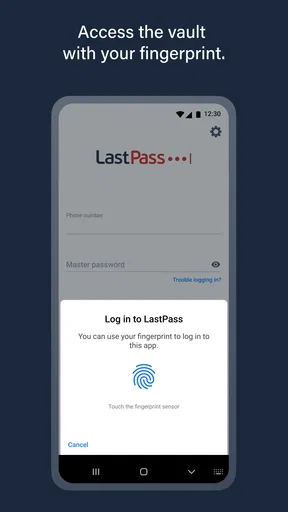
Security is a big deal, right? LastPass doesn’t skimp here. It offers multi-factor authentication (MFA) for an added layer of protection. You can use apps like Google Authenticator or even receive SMS codes for verification. I felt an extra sense of security knowing that even if someone got hold of my master password, they’d still need to jump through hoops to access my vault.
Sharing and Emergency Access
One of the features I didn’t expect to use but ended up loving is the sharing center. You can share credentials securely with family or coworkers. It’s perfect for shared accounts or subscriptions. And, just in case something happens to you, LastPass offers an emergency access feature. You can designate trusted contacts who can access your vault in case of an emergency. It’s a thoughtful touch that provides peace of mind.
Pricing and Plans
Let’s talk numbers. LastPass offers a free version that’s surprisingly robust. You get unlimited password storage on one type of device (either all computers or all mobile devices) and basic features. However, if you want cross-device sync, advanced multi-factor options, and priority tech support, the premium plan is worth considering. It’s reasonably priced and offers great value for the added features.
Wrapping It Up
So, is LastPass Password Manager worth it? In my opinion, absolutely. It’s intuitive, secure, and makes managing passwords a breeze. Plus, the peace of mind knowing your digital life is secure is priceless. Whether you’re a tech newbie or a seasoned pro, this app has something for everyone. Give it a try, and you might just find it’s the digital assistant you never knew you needed.
Ready to dive into the world of hassle-free password management? Check out the download links for both Android and iOS on our website and start your journey with LastPass today!
Verdict
Strengths of LastPass Password Manager
- Secure storage for unlimited passwords.
- Easy autofill across apps and browsers.
- Multi-factor authentication support.
- Seamless syncing across devices.
- Secure password sharing options.
Limitations of LastPass Password Manager
- Premium features require a subscription.
- Occasional sync delays reported.
- Limited offline access to vault.
- Complex setup for new users.
- Free version lacks some features.
Similar Picks in This Category
View All
Google Calendar
Google LLC4.6

Google Drive
Google LLC4.3

Google Assistant
Google LLC3.9

Microsoft OneDrive
Microsoft Corporation4.6

Samsung Calendar
Samsung Electronics Co., Ltd.4.1

Microsoft OneNote: Save Notes
Microsoft Corporation4.6
Frequently Asked Questions
What features does LastPass Password Manager offer?
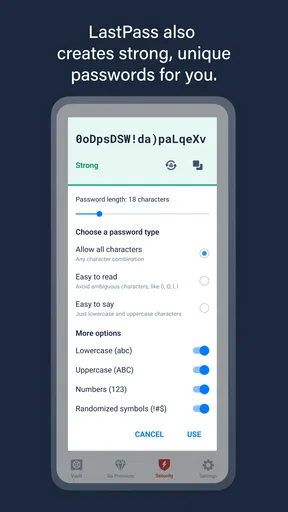
LastPass Password Manager offers a range of features including secure password storage, autofill capabilities for login forms, a password generator, and secure notes storage. It also supports multi-factor authentication and allows for easy sharing of passwords with trusted individuals. Additionally, LastPass provides cross-platform support, so your passwords are accessible on multiple devices.
Is LastPass Password Manager secure to use?
Yes, LastPass is designed with security in mind. It uses AES-256 bit encryption to protect your data. Your master password, which LastPass does not store, is required to access your vault. Additionally, LastPass offers options for multi-factor authentication, adding an extra layer of security to your account.
Can I use LastPass on multiple devices?
Yes, LastPass allows you to access your passwords on multiple devices. It is available on Android, iOS, Windows, and macOS. Your data syncs seamlessly across all your devices, ensuring you have access to your passwords wherever you go. However, the free version now limits sync to a single device type.
What is the cost of using LastPass?
LastPass offers both free and premium versions. The free version includes basic features such as password storage and form autofill, but limits device type sync. The premium version, which costs around $3 per month, offers additional features such as emergency access, priority tech support, and advanced multi-factor options.
How easy is it to set up and use LastPass?
Setting up LastPass is straightforward. After downloading and installing the app, you create an account and set a master password. LastPass then helps you import existing passwords or add new ones. The user interface is intuitive, making it easy to manage passwords, generate new ones, and set up security options.
